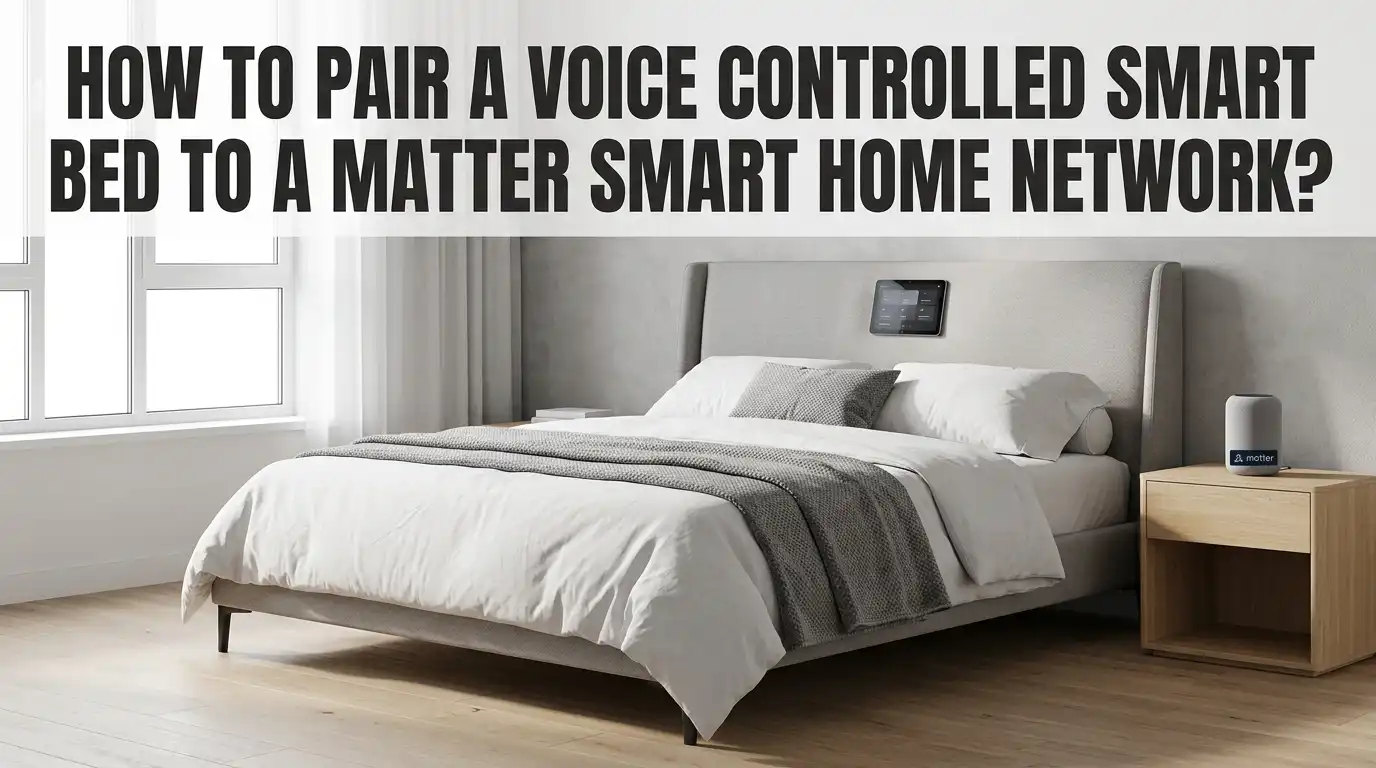
How to Pair a Voice Controlled Smart Bed to a Matter Smart Home Network?
Smart beds have changed how we sleep, relax, and wake up. They lift your head, warm your feet, track your sleep, and respond to voice commands.
Now, with the Matter standard reshaping smart home connectivity, many users want their smart bed to work inside this unified ecosystem. The good news is that pairing a voice controlled smart bed to a Matter network is possible, even if your bed does not natively speak Matter yet.
This guide walks you through every step. You will learn what Matter is, how smart beds connect, which voice assistants help, and how to fix common pairing problems.
Key Takeaways
- Matter is a universal smart home standard that lets devices from Apple, Google, Amazon, and Samsung talk to each other through one common language. Your smart bed can join this network through native support or a Matter bridge.
- Most smart beds today are not Matter native, so you need a bridge such as Home Assistant, SmartThings, or Aqara to connect them. This is the most common path for Sleep Number, Tempur Ergo, and similar models.
- Voice control needs a hub like Amazon Echo, Google Nest, or Apple HomePod. Each acts as a Matter controller and sends your voice commands to the bed.
- A 2.4 GHz Wi-Fi network and a Thread border router improve pairing reliability. Many setup failures come from dual band routers or weak signals near the bedroom.
- Each Matter device has a setup code, usually a QR code or 11 digit number. Keep it ready before you start pairing.
- Test simple commands first, like raise, lower, or flat. Then build routines for sleep, wake, and reading modes.
What Matter Means for Smart Beds
Matter is an open smart home standard backed by Apple, Google, Amazon, and the Connectivity Standards Alliance. It lets devices from different brands work together without separate apps. Your phone, hub, and bed can all share one network.
For smart beds, Matter means freedom of choice. You no longer need to stay locked inside one ecosystem. A Sleep Number bed paired through a bridge can respond to Alexa, Siri, and Google at the same time.
The catch is that most beds still use Wi-Fi or Bluetooth and rely on cloud services. Matter native beds are still rare in 2026. So you will likely use a bridge device to translate the bed’s signals into Matter commands.
Check If Your Smart Bed Supports Matter or a Bridge
Before pairing, confirm your bed model and its connection method. Open the maker’s app and look for terms like Wi-Fi, Bluetooth, Zigbee, or Matter. Sleep Number, Tempur Ergo, Saatva, and Eight Sleep all use Wi-Fi modules with cloud apps.
Pros of native Matter support: Direct pairing, faster response, and no extra hardware. Cons: Very few beds offer it as of 2026.
Pros of a bridge approach: Works with almost any smart bed. Cons: Adds one more device, and some functions may not pass through.
If your bed only has a remote with RF signals, you may need a Bond Bridge or Broadlink Hub to learn the codes. These hubs then connect to Matter through SmartThings or Home Assistant.
Set Up Your Matter Controller First
A Matter controller is the brain of your smart home. It can be an Apple HomePod, Apple TV 4K, Amazon Echo (4th gen or newer), Google Nest Hub, or Samsung SmartThings Station. Pick the one that matches your daily voice assistant.
Plug the controller into power and connect it to your home Wi-Fi. Use the matching app on your phone, Apple Home, Google Home, Alexa, or SmartThings. Sign in with the account you use most.
Tip: Place the controller within 30 feet of your bedroom for stronger signals. Walls and metal frames weaken Thread and Bluetooth.
A good controller setup makes every later step easier. Without it, Matter pairing simply will not begin. Many failed pairings trace back to a hub that was never fully configured.
Connect the Smart Bed to Its Native App
Every smart bed starts with its own app. Sleep Number uses the SleepIQ app, Tempur Pedic uses TEMPUR Ergo Smart Control, and Saatva uses the Saatva Smart Bed app. Download yours from the App Store or Google Play.
Plug the bed’s Wi-Fi module into power. Press and hold the pairing button for about five seconds until the light flashes blue. Open the app and follow the on screen steps to join your home Wi-Fi.
Important: Use the 2.4 GHz band, not 5 GHz. Most bed modules cannot see 5 GHz networks. If your router combines both bands, split them temporarily during pairing.
Once the bed shows up in the native app, test the basic functions. Raise the head, lower the foot, and try the flat preset. If these work, the bed is ready for the next step.
Add the Bed Through a Matter Bridge
Since most smart beds are not Matter native, a bridge brings them in. The most reliable options are Home Assistant, SmartThings, Hubitat, and Aqara M3. Each one runs a custom integration that turns the bed into a Matter accessory.
For Home Assistant, install the SleepIQ or Tempur Pedic integration through HACS. Once added, expose the bed entities to Matter using the built in Matter Server add on. Home Assistant will generate a QR pairing code.
Pros of Home Assistant: Free, flexible, and supports almost every bed. Cons: Needs a Raspberry Pi or mini PC and some technical setup.
Pros of SmartThings: Easier interface and official app. Cons: Limited bed integrations, mostly community made.
Open your Matter controller app, choose Add Device, then Matter Device, and scan the QR code from the bridge. Your bed now lives in the Matter network.
Pair the Bed with Apple Home
If you use an iPhone, Apple Home is the simplest Matter controller. Make sure you have an Apple TV 4K or HomePod mini acting as the home hub. Both run iOS 16.1 or later.
Open the Home app, tap the plus icon, then Add Accessory. Point your camera at the Matter QR code from your bridge. Apple Home will detect the bed and ask which room to add it to.
Name the bed clearly, like Master Bed or Guest Bed. Siri uses this name, so keep it short. Try saying “Hey Siri, raise the master bed.” If it responds, the pairing worked.
Tip: Apple Home shows beds as generic switches or controllers if the device type is not standard. You can rename actions inside Shortcuts to make voice commands feel natural.
Pair the Bed with Google Home
Google Home makes voice control feel conversational. Open the app, tap the plus sign, then Set up device, then Matter enabled device. Scan the QR code from your bridge.
Google Home will ask for the room and a preferred name. Choose something simple like Bedroom Bed. The app then links the bed to your Google account and any Nest speaker in your home.
Try a command like “Hey Google, set bedroom bed to reading mode.” If you built routines in the bridge, Google can trigger them as scenes. You can also create Google Home routines that lower the bed at bedtime.
Pros: Strong natural language understanding and wide speaker support. Cons: Some smart bed features show up as basic on or off switches, not full controls.
Pair the Bed with Amazon Alexa
Alexa supports Matter on most newer Echo devices, including Echo 4th gen, Echo Dot 5th gen, Echo Show 8, Echo Show 10, and Echo Hub. Make sure your Echo is updated to the latest firmware.
Open the Alexa app, tap Devices, then the plus icon, then Add Device. Choose Matter from the list and scan the QR code. Alexa will discover the bed in under a minute.
Once added, give the bed a friendly name. Try “Alexa, raise the bed” or “Alexa, turn on bedtime.” You can build Alexa routines that dim lights, lower the bed, and play sleep sounds together.
Pros: Wide device support, natural voice flow, and strong routines. Cons: Some bed actions may need custom skills if the bridge does not expose them as Matter switches.
Pair the Bed with Samsung SmartThings
SmartThings works well for users with Galaxy phones or Samsung TVs. The SmartThings Station and SmartThings Hub V3 both act as Matter controllers and Thread border routers.
Open the SmartThings app, tap the plus icon, then Device, then Partner devices. Pick Matter and scan the QR code from your bridge. The bed will appear in your default room.
SmartThings supports automations called Routines. You can set the bed to flatten at 7 a.m., raise at 10 p.m., or warm the feet when the room temperature drops. These run locally if your hub supports edge drivers.
Pros: Local control, strong automations, and good Samsung TV integration. Cons: Bed integrations are mostly community built and may break after updates.
Build Voice Routines for Sleep and Wake
Once the bed is on Matter, voice routines turn it into a true sleep partner. Open your assistant app and create routines for Bedtime, Reading, Wake Up, and Massage. Each can chain several actions.
A good Bedtime routine might dim the lights, lock the doors, lower the thermostat, and set the bed to flat. A Reading routine could raise the head to 30 degrees and turn on a soft lamp.
Use simple trigger phrases. “Goodnight” or “I am going to bed” feels natural. Avoid long phrases that the assistant may mishear.
Tip: Test each routine during the day first. You do not want to discover a broken automation at 11 p.m. when you are tired and trying to sleep.
Fix Common Pairing Problems
Pairing issues happen, even with Matter. The most common one is a QR code that will not scan. Make sure the bridge generated a fresh code, since old codes expire after 15 minutes.
If the controller cannot find the bed, check your Wi-Fi band. Matter commissioning needs both the phone and the bridge on the same 2.4 GHz network. Turn off VPNs and guest network isolation during setup.
Sometimes the bed pairs but voice commands fail. This usually means the device type is wrong. Inside the bridge, change the bed entity from Generic to Switch or Window Covering so the assistant maps voice phrases correctly.
Tip: Restart your Matter controller, bridge, and phone if pairing stalls. A simple reboot fixes about half of all Matter setup issues.
Improve Reliability with Thread and Wi-Fi
Matter runs over Thread and Wi-Fi. Smart beds usually use Wi-Fi, while Matter sensors often use Thread. A strong network on both sides keeps voice commands fast.
Place a Thread border router like Apple TV 4K, Echo 4th gen, or Nest Hub 2nd gen near the bedroom. This extends mesh coverage and reduces lag. Keep your Wi-Fi router central, not stuffed inside a cabinet.
For large homes, use a Wi-Fi 6 mesh system with at least one node near the bed. Thick walls, mirrors, and metal bed frames block signals more than people expect.
Pros of Thread: Low power, fast, and self healing. Cons: Needs a border router and is not used by most beds yet. Pros of Wi-Fi: Universal and simple. Cons: Higher power use and possible congestion.
Frequently Asked Questions
Can I pair a Sleep Number bed directly to Matter?
Not yet. Sleep Number beds use Wi-Fi and the SleepIQ cloud. You need a bridge like Home Assistant or SmartThings with a community integration. Once bridged, the bed appears as a Matter accessory in Apple Home, Google Home, or Alexa.
Do I need a separate hub for Matter?
You need at least one Matter controller. This can be an Apple HomePod, Apple TV 4K, Echo 4th gen or newer, Google Nest Hub, or SmartThings Station. Most people already own one. No extra purchase is needed if you have a recent smart speaker.
Why does my bed disconnect from voice control often?
Disconnections usually come from weak Wi-Fi or an outdated bridge. Move your router closer, update the bridge software, and check that your bed’s Wi-Fi module has the latest firmware. Restart the controller if the issue continues.
Can multiple voice assistants control the same bed?
Yes. That is the main benefit of Matter. Once the bed is paired through a bridge, you can add it to Apple Home, Google Home, and Alexa at the same time. Each assistant gets its own pairing code from the bridge.
Is voice control safe and private?
Voice assistants record short snippets of your commands. You can review and delete them in the assistant app. Matter itself uses end to end encryption between devices, so your bed commands stay private inside your home network.
What if my smart bed only has a remote and no app?
You can still bring it into Matter using an RF learning hub like Bond Bridge or Broadlink. The hub learns your remote’s signals, then exposes them as switches in Home Assistant or SmartThings. From there, Matter pairing works as normal.

Hi, I’m Ava Day, the founder and lead writer at Cozy Bed Vault. I’m passionate about sleep wellness and dedicated to helping people find their perfect mattress. Through honest reviews, detailed comparisons, and expert buying guides, I simplify the mattress shopping experience so you can sleep soundly every night.